Prom Guide by Unitsoft
1. Recommendation before starting work
Before starting use of the integration module, It is recommended to definitely export current data on all products. This will allow you to maintain the current state of the catalog and avoid loss or incorrect synchronization of information during initial setup.
1.1. Log in to Prom.ua seller's cabinet and go to the section «Products and Services → Positions».
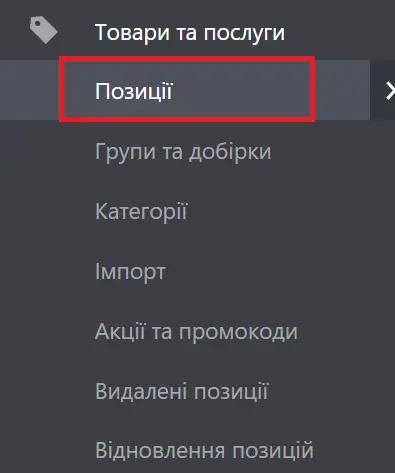
1.2. Press the button "Export", select required export parameters and execute export of groups and product items.
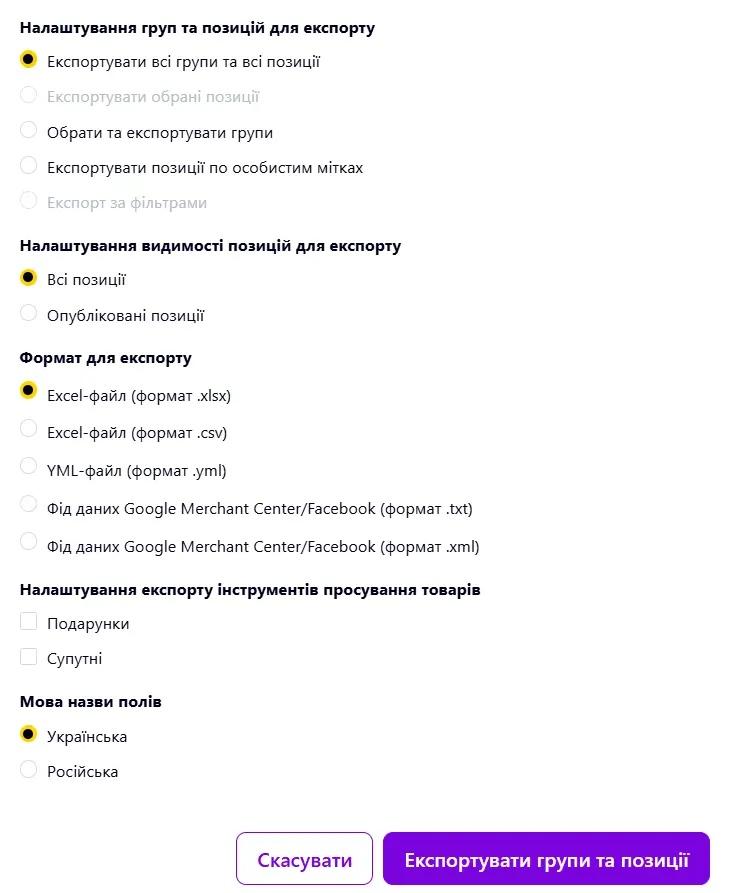
This will allow prevent potential data loss in case of errors during synchronization and will provide additional security for your store.
2. Getting Started
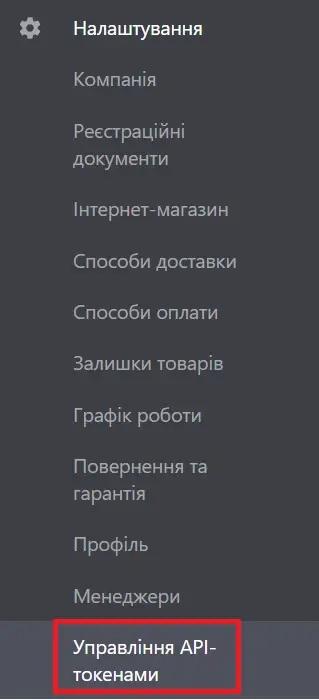
Log in to Prom.ua seller's cabinet and go to the section Settings → API Token Management.
Create new API token with the necessary with access parameters (token validity date Prom.ua will install automatically).
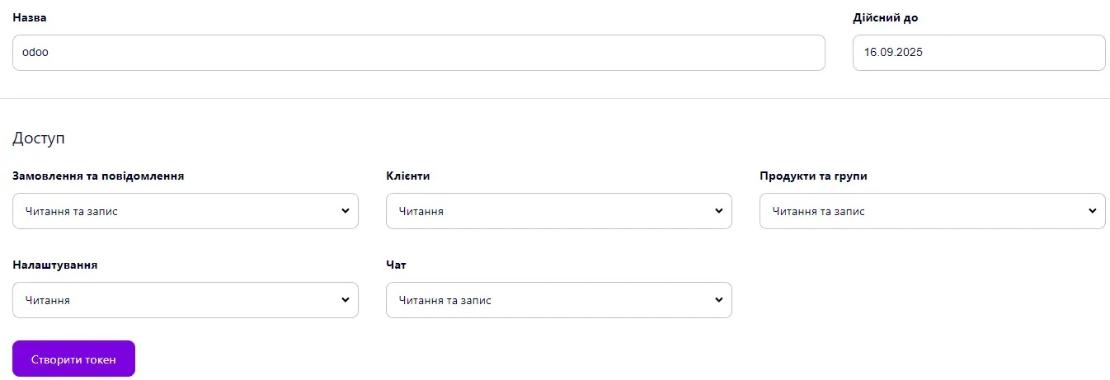
Copy API token.
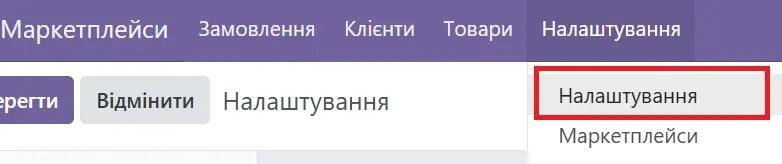
Next in Odoo go to the menu «Marketplaces → Settings».
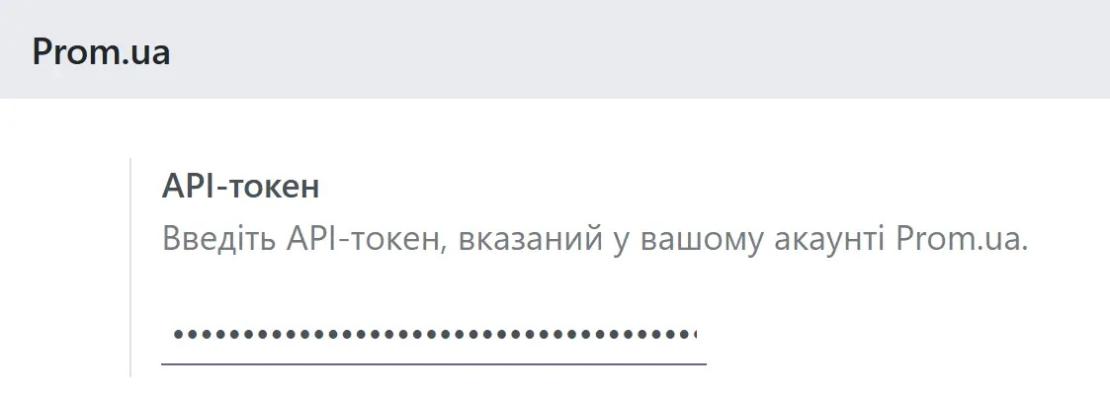
Enter API token in the appropriate field and save the settings.
3. Import data from Prom.ua
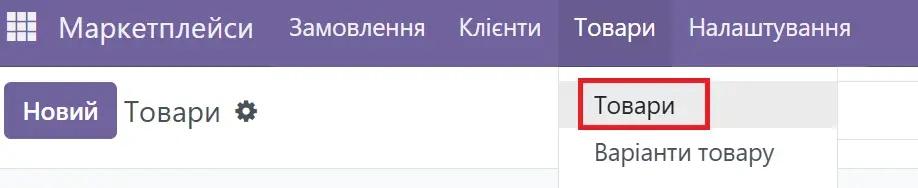
Go to the section "Products".
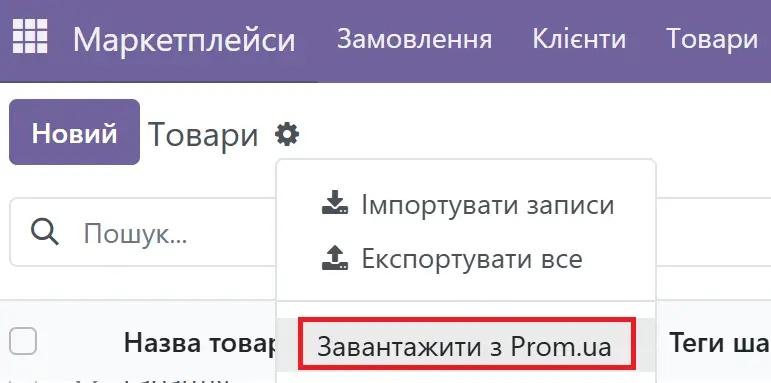
Choose action «Download from Prom.ua» (process uploading products may take some time).
After performing the action information about the products will be imported to the system.
All products, including varieties, are created as individual items, since The Prom.ua API does not transmit product characteristics.
Separately, in in the background, will be launched image import process — it can last a few minutes depending on the number of products.
After completion import of products necessary enter current balances in Odoo in the corresponding sections of warehouse accounting.
Perform similarly import of Clients and Orders.
By default, only will be loaded orders received after module installation.
If necessary, you can additionally import previous orders. Для цього скористайтесь пунктом інструкції «Loading all orders».
4. Uploading all orders
⚠️ Attention: import previous orders can affect current product balances, because the system will recount the movement of goods according to imported orders.
For loading all orders necessary enable additional access rights (see section «Additional access rights»).
After that, go to Settings.
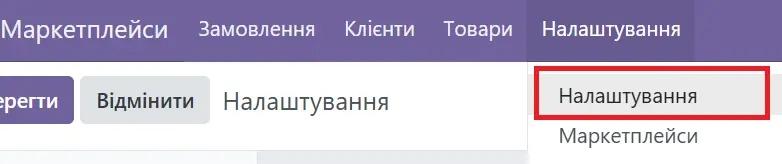
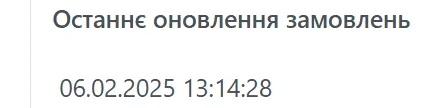
In the field «Last order update» select date, starting from which you need download orders.
If necessary import of all existing orders — clear the date field.
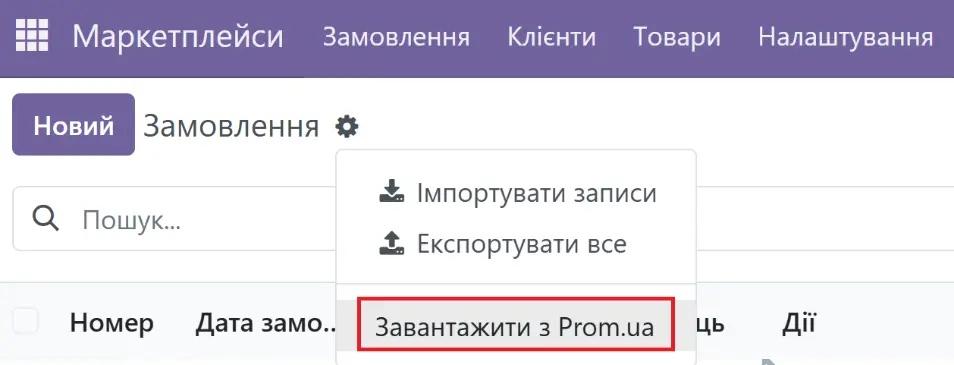
Go to the tab "Orders" and select the action «Download from Prom».
⚠️ Attention: after loading all orders it is recommended disable additional access rights, if further work with them not needed.
5. Interaction with products
Changes made to product card on the tab "Prom.ua", automatically transmitted to Prom.ua.
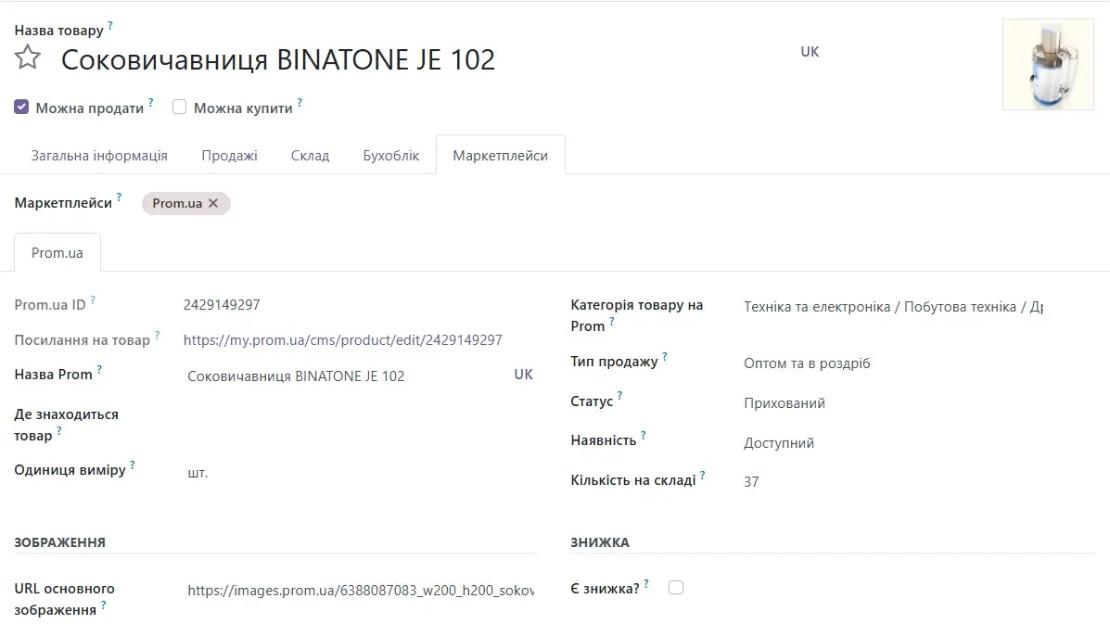
For product varieties on Prom.ua list fields available for editing are limited. You can only change:
- name and translations;
- status;
- availability;
- quantity in stock;
- discount.
Determine that the product is variety, can be by the appropriate field in the product card.
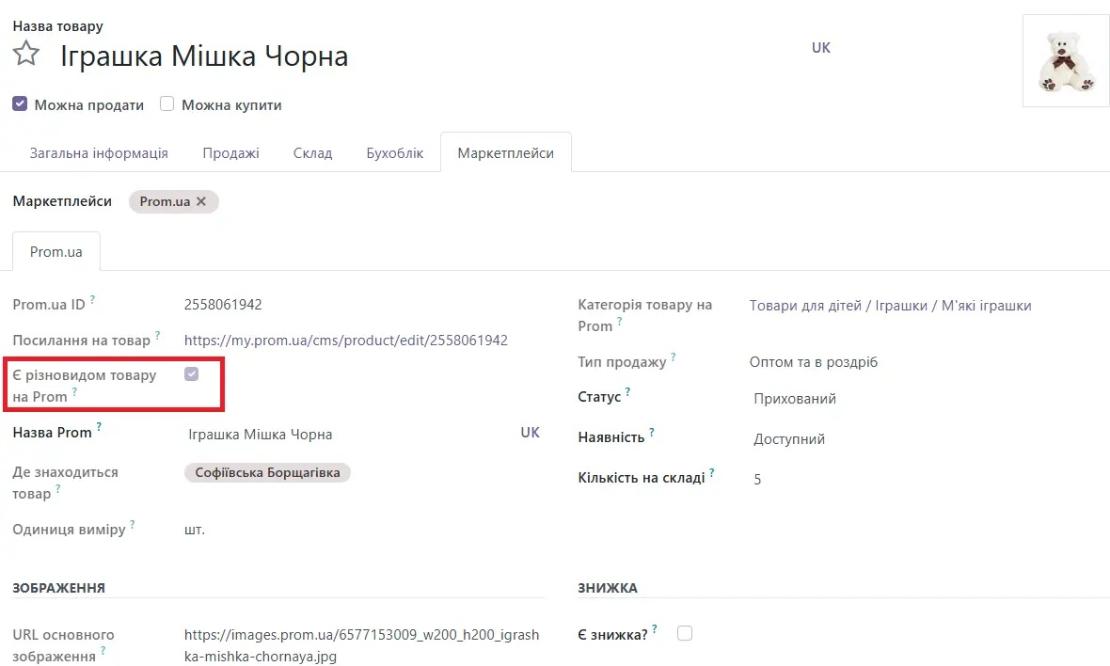
Prices, changed in price lists for products related to Prom.ua, automatically updated on the marketplace.
To the price was correctly exported to Prom.ua, it is necessary to choose appropriate price list:
- Retail Pricelist for Marketplaces — for retail prices;
- Wholesale Pricelist for Marketplaces — for wholesale prices.
The selected price list must contain a mark Prom.ua in the field «Marketplaces».
If necessary, change the price go to the section «Additional prices» in product card and make the appropriate adjustments.


Product update queue is being processed every 5 minutes. If at a certain moment Prom.ua temporarily does not accept packages, updated data on products and balances will be sent later, as soon as Prom.ua resumes package acceptance.
Please note that updating products on Prom.ua can lasts more than 20 minutes.
In case of occurrence errors during unloading, system will notify the user about this.
Detailed information about the synchronization status can be viewed in synchronization queue, available by the path Settings → Synchronization Queue.
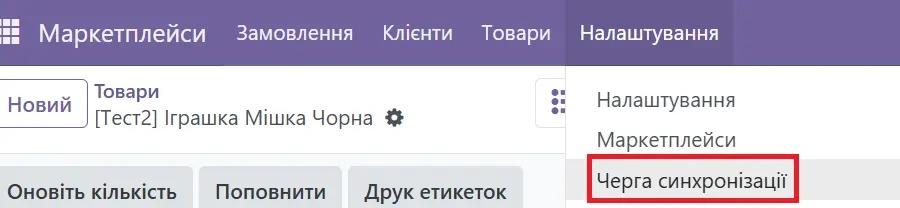
In the corresponding action Export products to the marketplace is displayed Product ID in the system and error message, received from Prom.ua.
In such a case, it is necessary correct the error in the product card and retry the export attempt.
6. Balances
By default during export of products to Prom.ua a special field is used «Quantity in stock», which is filled during import from Prom.ua. In this mode, this field not related to actual warehouse balances in the system Odoo.
If necessary, so that on Prom.ua were transferred current balances directly from Odoo, enable the option Unload current balances on Prom.ua in in module settings.
Before activating this option be sure to check, that all warehouse balances in the system are current, to avoid incorrect data on the marketplace.

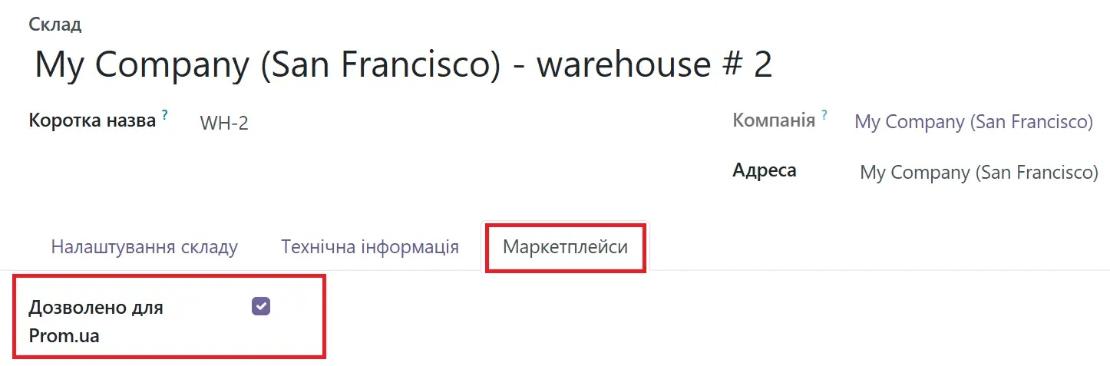
By default product balances are tracked across all warehouses, for which interaction with Prom.ua is allowed.
If you have several warehouses and there is a need do not consider balances from individual warehouses during synchronization with Prom.ua, perform the following actions:
- Go to the module "Warehouse" and in Settings open the section "Warehouses".
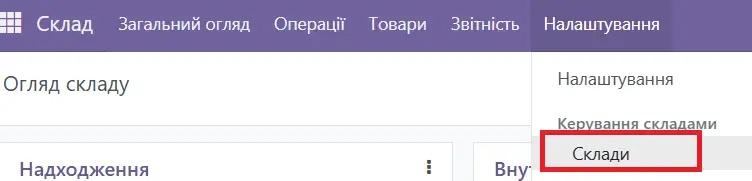
- Uncheck the box on warehouse, balances which do not need to be considered during synchronization with Prom.ua.
7. Order statuses
The module allows change the order status and transmit updated status to Prom.ua.
For status "Canceled" necessary additionally select the reason for cancellation.
Data update between systems is performed every 5 minutes.
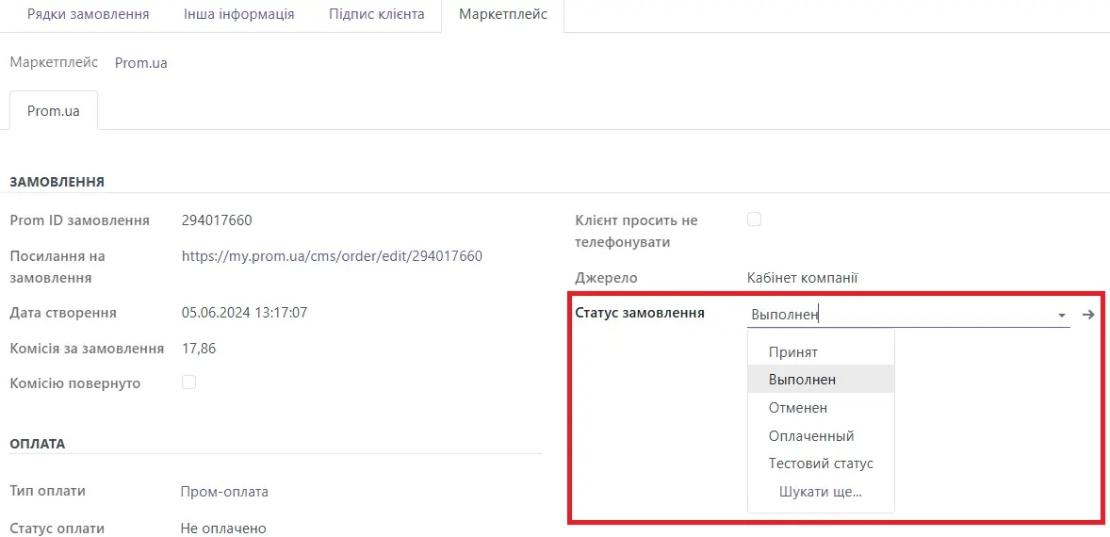
Module automatically transfers in status "Completed" for completed orders.
In case if the order in Odoo was canceled, it automatically canceled on Prom.ua.
At the same time cancellation reason is set automatically as "Other", with a comment «Canceled by manager».
8. Refunds
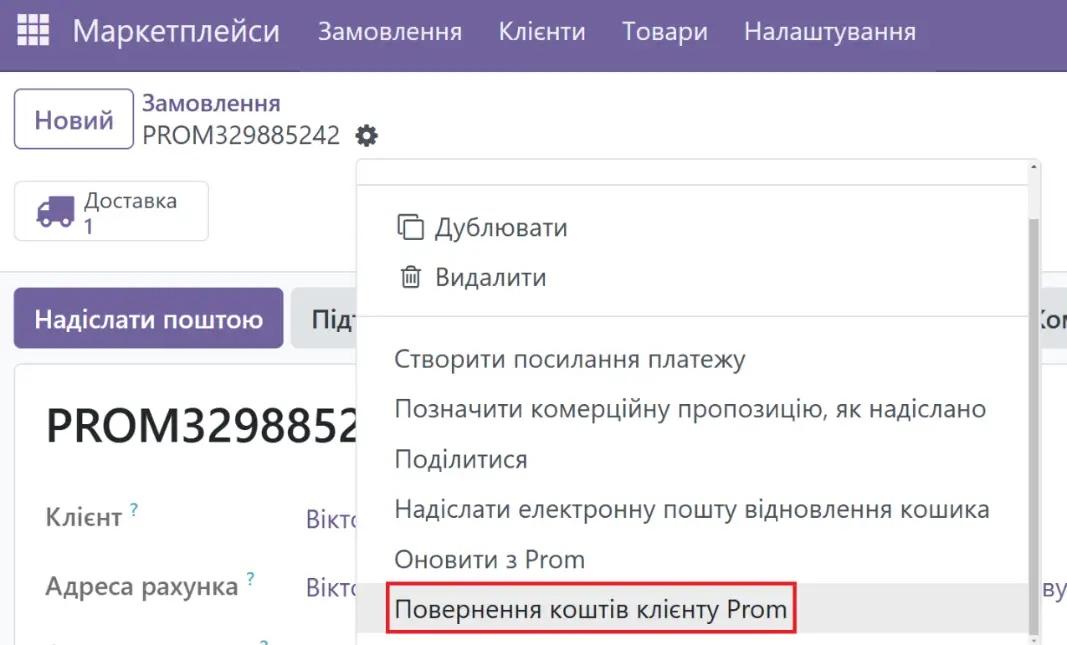
To refund the customer for the order, open required order and select the action Refund to Prom customer.
9. Attachment of EN
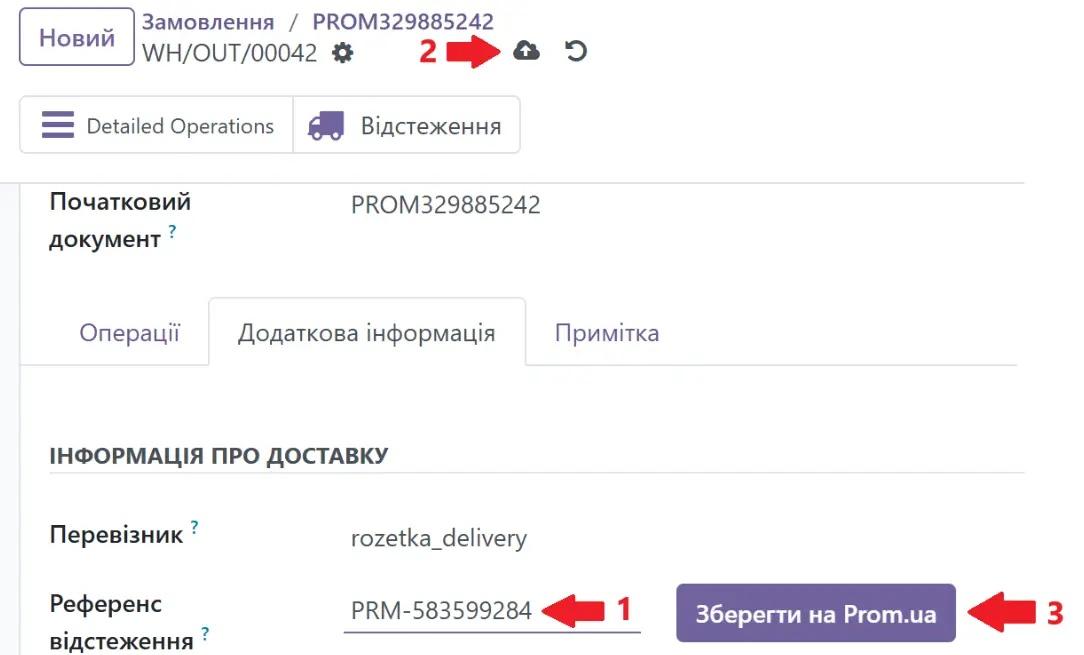
The module supports saving the declaration number, created outside the Prom.ua cabinet. To do this, follow these steps:
- go to transfer of the required order;
- enter EN (express number) in the field «Tracking reference»;
- save changes;
- press «Save on Prom.ua» for data transmission to the marketplace.
10. Synchronization sequence
If necessary, you can change the order of synchronization execution with the marketplace.
For this, go to Exchange sequence parameters.
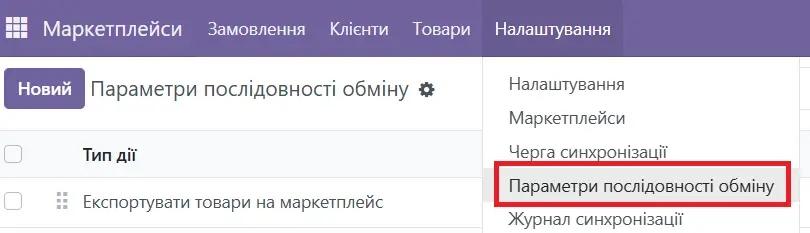
Drag actions in required execution order.
Action located above, is performed first, but located below — last.

11. Additional access rights
If there is a need to change service or technical fields, the user needs to provide additional access rights — «Marketplace Administrator».
For this, go to global Odoo settings.
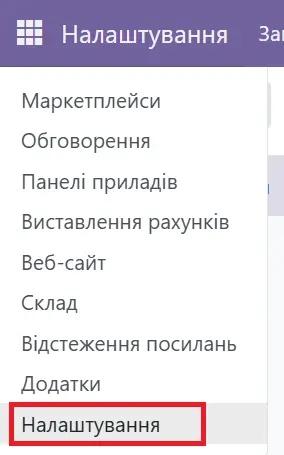
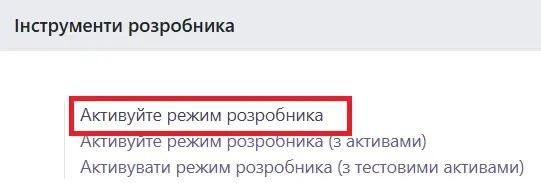
Activate developer mode.
In in global settings go to the menu «Users».
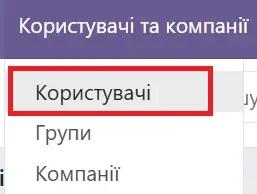
Find current user.
In in the user's technical settings select role «Marketplace Administrator».
